
Start free trial Webinars Certifications Catalog

Deploy Fin over email

Learn how to configure a dedicated email workflow for Fin and roll it out with confidence.

rate limit

Code not recognized.

About this course

After creating guidance to control how Fin behave's over email, the next step is to deploy it in a workflow dedicated for this channel. Beyond just switching Fin on, we need to configure pacing, who Fin responds to, and how conversations get handed off, so the channel runs the way you want.

Prerequisites

Before training Fin for email, make sure you’re ready to go.

  • Fin deployed on chat: In most cases, it’s better to already have Fin AI Agent live on your chat channel before expanding it to email. If you haven’t set Fin up yet, take the Launch Fin course to get started.
  • Email channel set up: To deploy Fin over email, you need to connect your email channel first.
  • Fin trained for email: Fin should already have guidance configured to behave properly over email. See the full Expand Fin to Email course to learn how to set this up.

Video transcript

Now that we've trained Fin how to behave over email, it's time to deploy it in a workflow for this channel. Let's go to Deploy, Email, and create a new workflow from this template. And we can see here on the trigger that it's targeted at just the email channel. So what we configure here won't conflict with your setup for chat conversations. So right now, this workflow is quite simple. It's triggered when an email is received. It first sends a short greeting, then Fin picks it up, responds to the customer, handing over to the team if it needs to. Now let's customize it so Fin behaves exactly the way we want on this channel. First, we only want Fin replying to genuine support emails. So in the trigger, we'll add an audience rule using the to email predicate and point it at our primary support address. Now, Fin will only involve itself in emails when they arrive at our primary support email address, not any of our other addresses. Next, because email is asynchronous, we'll slow down some of Fin's replies to match customer expectations. A nice trick here is to let our greeting do double duty. Acknowledge receipt of the email straight away and disclose that the customer is talking to an AI Agent. Then, we'll add a short wait action, only about five minutes or so before Fin sends its full answer. It's a small adjustment, but it fits the rhythm customers expect over email. Then, we'll set how long Fin waits before following up with a customer who's gone quiet. Twenty four hours is a good default. And after the follow-up, the conversation will auto-close after the period you set here. This should be significantly longer than on chat, something like one or two days since the customer may still intend to reply. And then, if you want to send a CSAT survey, we've got two natural moments to ask for a rating: after a customer gives positive feedback, which strongly suggests the issue was resolved, or after Fin answered and the customer went inactive. If we find that CSAT surveys are interrupting too many unresolved conversations, we can leave this one off. Okay, So we fine-tuned the pace of Fin's replies to suit email. Now let's look at another way this channel differs from the rest, multi participant threads. Since a single email thread can have several people on it, we should decide when Fin should answer and who it should include in the message. If Fin is only CC'd, that usually means it's just being kept in the loop, not being asked for help. So we'll set Fin to respond only when it's one of the main recipients in the to field. This way, Fin won't wade into conversations where it isn't needed. And we'll set Fin only to reply to the original sender, not anyone cc'd it. This is usually the safer choice when it comes to privacy. But Reply all keeps everyone in the loop, so weigh it against your own requirements and policies. When Fin hands over a conversation, that's exactly what it does. It no longer controls where that conversation goes. That's a job for your workflow. We can use a mix of customer data, Fin attributes, and escalation reasons to route messages to the right teams. We can use the same structure as we set up previously for chat, but it's worth taking a moment to look at what's different about the queries we receive over email. Email is often the customer's preferred channel for serious or complex issues, like billing disputes or formal complaints. So use Topics Explorer to look for high volume issue types unique to email and set up routing rules to send them straight to the right team. Okay. Our workflow looks ready to deploy. But before we set it live, we'll use the preview panel to see exactly how Fin responds and that it tries to escalate when it should. You can even email a few queries to a test address and watch Fin's replies land in your own inbox so you experience the whole thing just as a customer would. When you're finally ready to hit that green button, go live to every customer over email. Next, we'll look at how to review your results and optimize Fin over email for even better performance.


Why use separate workflows for each channel?

It’s best practice to build a dedicated workflow for Fin on each support channel, so you can tailor the experience to what customers expect there. This approach is especially vital for email, because the available workflow steps and options differ from those available for a chat workflow.

The benefits of a separate email workflow:

  • Easy rollout: Add the email channel without reconfiguring what’s already live.
  • Channel-appropriate greetings: Match your brand voice and meet AI disclosure requirements specific to email.
  • Different pacing: Set wait times and auto-close durations that fit how customers actually behave on this channel, rather than reusing chat’s faster rhythm.
  • Channel-specific routing: Send email’s often more complex or sensitive queries straight to the right team.
  • Independent escalation paths: Adjust handover logic without affecting chat or any other channel.
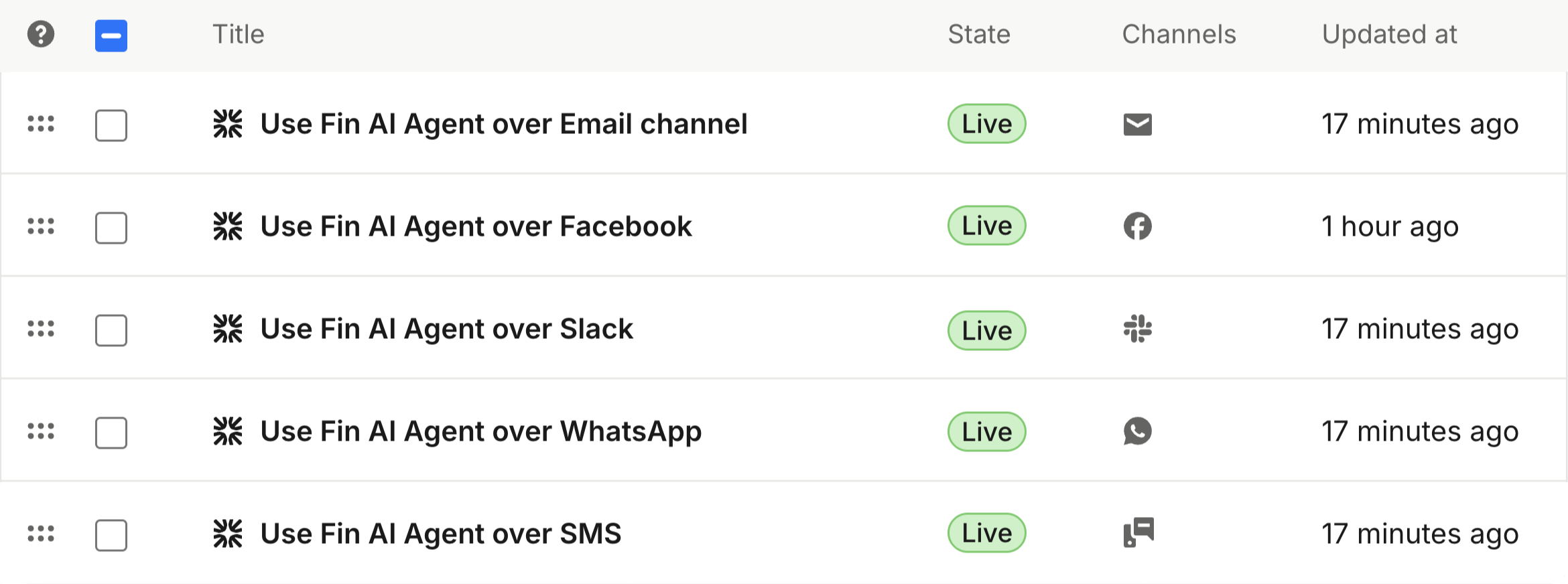
 

Separate Fin workflows for different support channels


How to roll out

The recommended approach is to turn Fin on for all of your email volume from day one, rather than easing in with a single segment.

This is because you’re already starting from a strong position, with your existing knowledge base and the email-specific guidance and configuration you just set up.
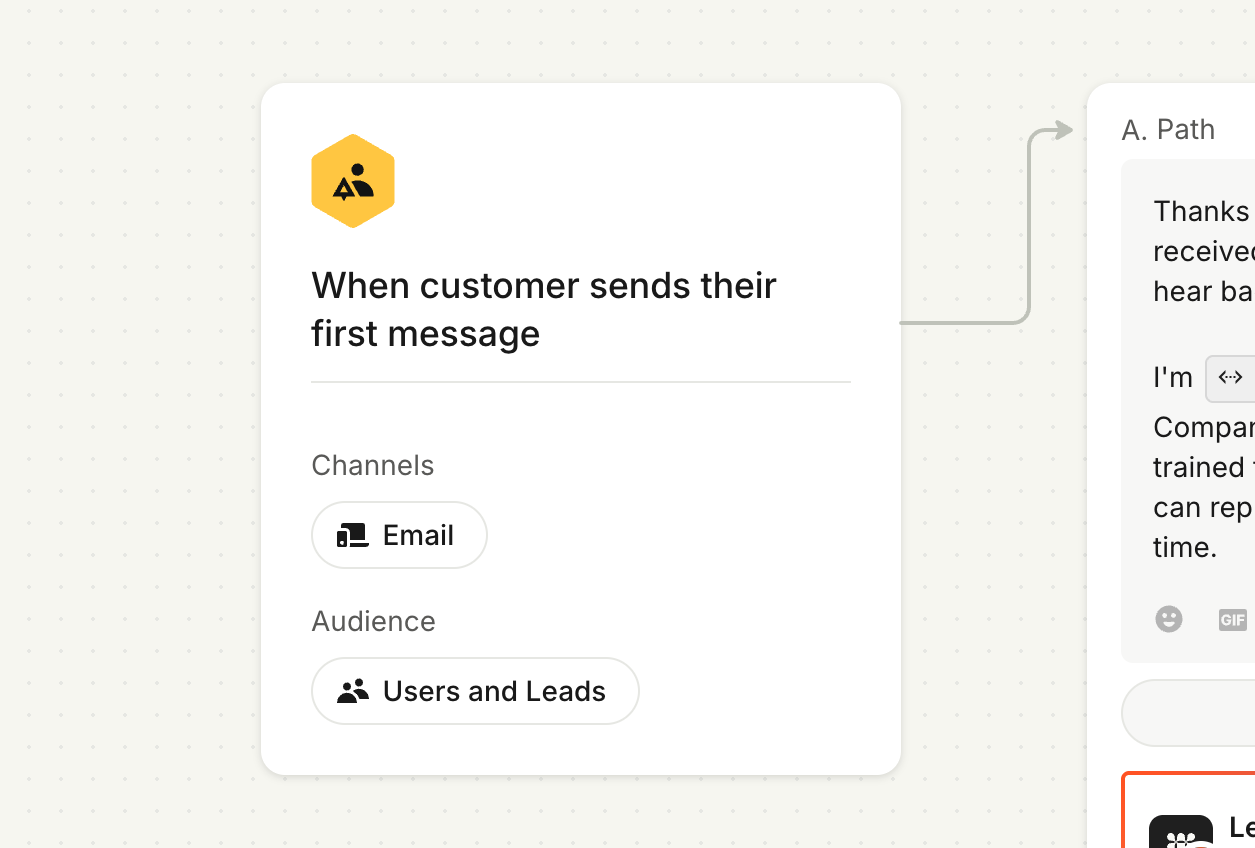
Workflow showing Fin enabled for all email traffic

After going live, keep a close eye on results so you know where Guidance, Human in the Loop (HITL), and Escalation rules need adjusting. We’ll cover how to analyze and refine Fin’s email performance in the next lesson.


AI Agent disclosure

Letting customers know they’re talking to an AI Agent may be a legal requirement depending on where you operate, and it’s good practice everywhere.

Over email, there are two ways to disclose this. You can use one or both:

  • Introductory message: Added to the start of Fin’s very first reply, acknowledging the email while disclosing that Fin is an AI Agent.
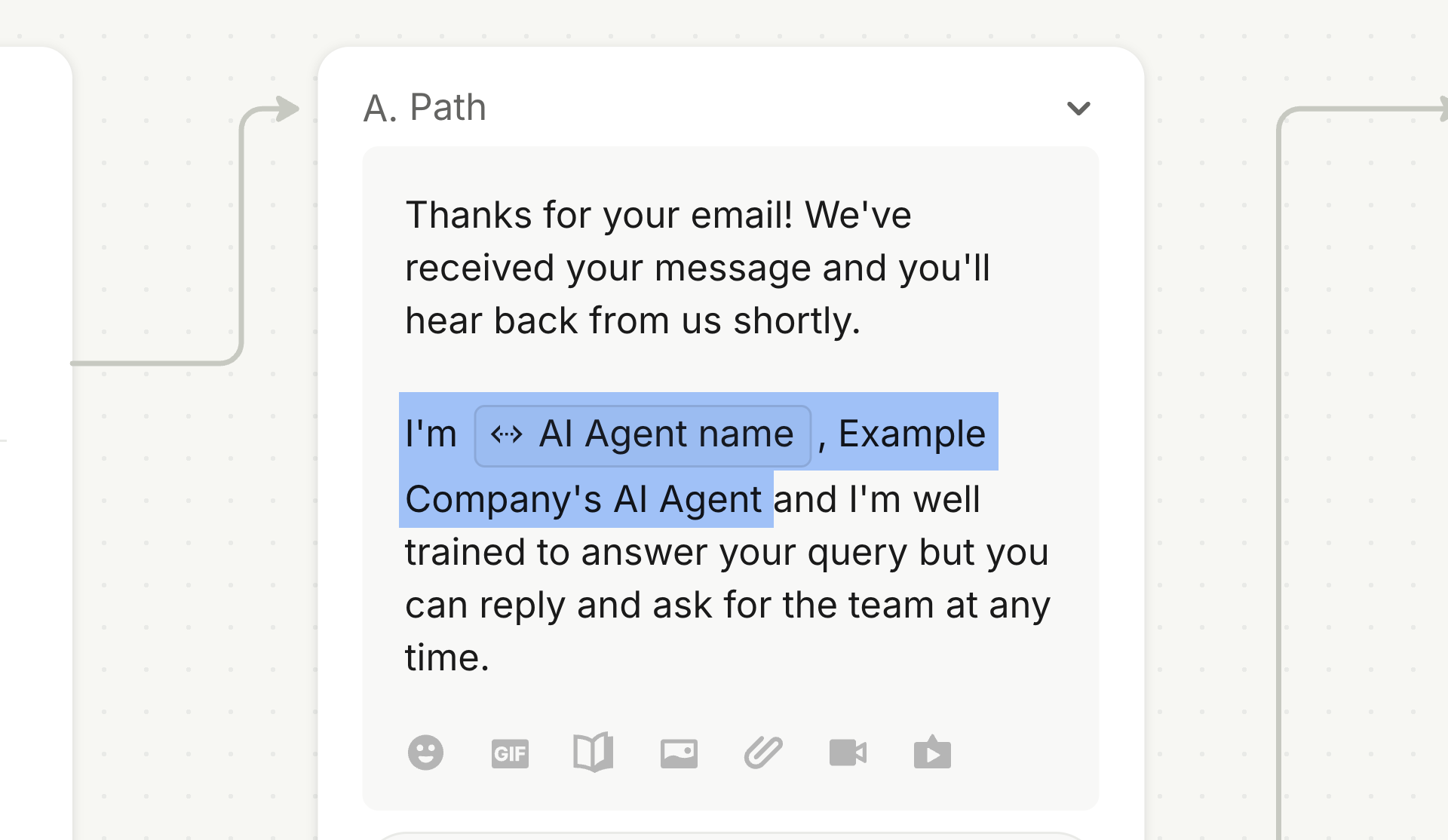
AI Agent disclosure in Fin's introductory email message

  • Email footer: A line under Fin’s signature reading “This answer was composed by [AI Agent name], [Workspace name]’s AI Agent.” This is on by default.
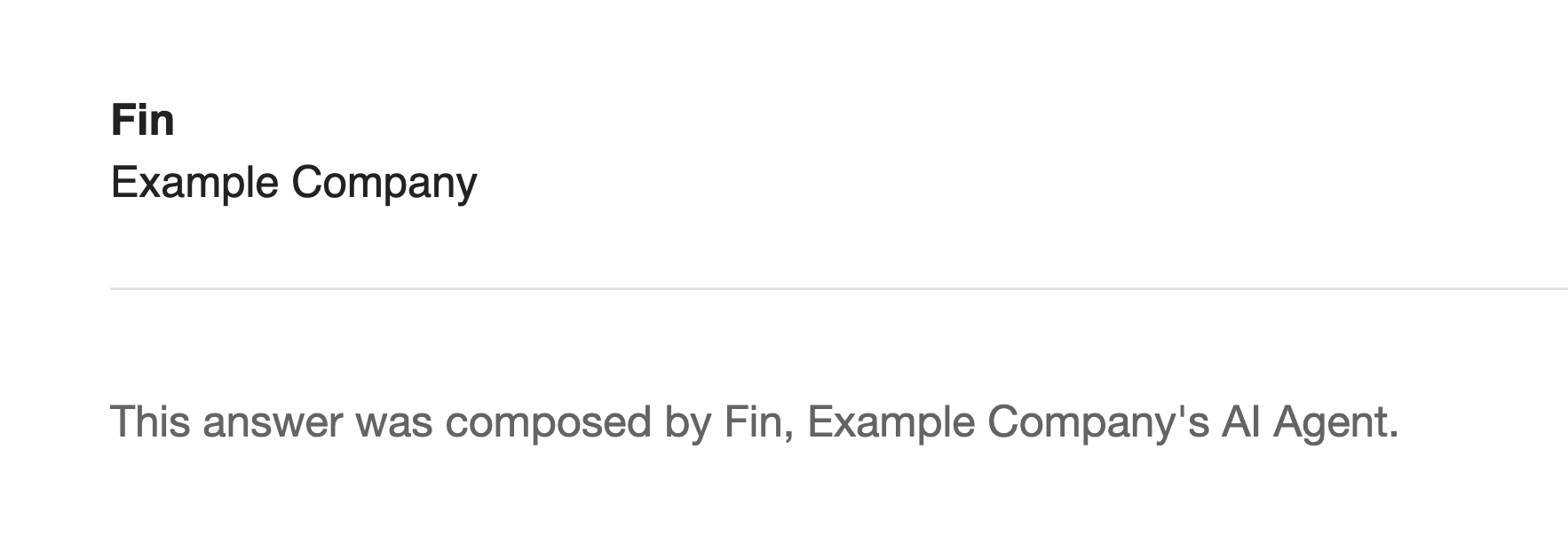

AI Agent disclosure in Fin's email footer


What’s next?

Fin is live over email and disclosing itself properly, so what now?

Ready to go deeper?

This lesson is part of the full Expand Fin to Email course, covering training, deployment, and post-launch monitoring.
πŸ‘‰ Take the full course

About this course

After creating guidance to control how Fin behave's over email, the next step is to deploy it in a workflow dedicated for this channel. Beyond just switching Fin on, we need to configure pacing, who Fin responds to, and how conversations get handed off, so the channel runs the way you want.

Prerequisites

Before training Fin for email, make sure you’re ready to go.

  • Fin deployed on chat: In most cases, it’s better to already have Fin AI Agent live on your chat channel before expanding it to email. If you haven’t set Fin up yet, take the Launch Fin course to get started.
  • Email channel set up: To deploy Fin over email, you need to connect your email channel first.
  • Fin trained for email: Fin should already have guidance configured to behave properly over email. See the full Expand Fin to Email course to learn how to set this up.

Video transcript

Now that we've trained Fin how to behave over email, it's time to deploy it in a workflow for this channel. Let's go to Deploy, Email, and create a new workflow from this template. And we can see here on the trigger that it's targeted at just the email channel. So what we configure here won't conflict with your setup for chat conversations. So right now, this workflow is quite simple. It's triggered when an email is received. It first sends a short greeting, then Fin picks it up, responds to the customer, handing over to the team if it needs to. Now let's customize it so Fin behaves exactly the way we want on this channel. First, we only want Fin replying to genuine support emails. So in the trigger, we'll add an audience rule using the to email predicate and point it at our primary support address. Now, Fin will only involve itself in emails when they arrive at our primary support email address, not any of our other addresses. Next, because email is asynchronous, we'll slow down some of Fin's replies to match customer expectations. A nice trick here is to let our greeting do double duty. Acknowledge receipt of the email straight away and disclose that the customer is talking to an AI Agent. Then, we'll add a short wait action, only about five minutes or so before Fin sends its full answer. It's a small adjustment, but it fits the rhythm customers expect over email. Then, we'll set how long Fin waits before following up with a customer who's gone quiet. Twenty four hours is a good default. And after the follow-up, the conversation will auto-close after the period you set here. This should be significantly longer than on chat, something like one or two days since the customer may still intend to reply. And then, if you want to send a CSAT survey, we've got two natural moments to ask for a rating: after a customer gives positive feedback, which strongly suggests the issue was resolved, or after Fin answered and the customer went inactive. If we find that CSAT surveys are interrupting too many unresolved conversations, we can leave this one off. Okay, So we fine-tuned the pace of Fin's replies to suit email. Now let's look at another way this channel differs from the rest, multi participant threads. Since a single email thread can have several people on it, we should decide when Fin should answer and who it should include in the message. If Fin is only CC'd, that usually means it's just being kept in the loop, not being asked for help. So we'll set Fin to respond only when it's one of the main recipients in the to field. This way, Fin won't wade into conversations where it isn't needed. And we'll set Fin only to reply to the original sender, not anyone cc'd it. This is usually the safer choice when it comes to privacy. But Reply all keeps everyone in the loop, so weigh it against your own requirements and policies. When Fin hands over a conversation, that's exactly what it does. It no longer controls where that conversation goes. That's a job for your workflow. We can use a mix of customer data, Fin attributes, and escalation reasons to route messages to the right teams. We can use the same structure as we set up previously for chat, but it's worth taking a moment to look at what's different about the queries we receive over email. Email is often the customer's preferred channel for serious or complex issues, like billing disputes or formal complaints. So use Topics Explorer to look for high volume issue types unique to email and set up routing rules to send them straight to the right team. Okay. Our workflow looks ready to deploy. But before we set it live, we'll use the preview panel to see exactly how Fin responds and that it tries to escalate when it should. You can even email a few queries to a test address and watch Fin's replies land in your own inbox so you experience the whole thing just as a customer would. When you're finally ready to hit that green button, go live to every customer over email. Next, we'll look at how to review your results and optimize Fin over email for even better performance.


Why use separate workflows for each channel?

It’s best practice to build a dedicated workflow for Fin on each support channel, so you can tailor the experience to what customers expect there. This approach is especially vital for email, because the available workflow steps and options differ from those available for a chat workflow.

The benefits of a separate email workflow:

  • Easy rollout: Add the email channel without reconfiguring what’s already live.
  • Channel-appropriate greetings: Match your brand voice and meet AI disclosure requirements specific to email.
  • Different pacing: Set wait times and auto-close durations that fit how customers actually behave on this channel, rather than reusing chat’s faster rhythm.
  • Channel-specific routing: Send email’s often more complex or sensitive queries straight to the right team.
  • Independent escalation paths: Adjust handover logic without affecting chat or any other channel.


Separate Fin workflows for different support channels


How to roll out

The recommended approach is to turn Fin on for all of your email volume from day one, rather than easing in with a single segment.

This is because you’re already starting from a strong position, with your existing knowledge base and the email-specific guidance and configuration you just set up.

Workflow showing Fin enabled for all email traffic

After going live, keep a close eye on results so you know where Guidance, Human in the Loop (HITL), and Escalation rules need adjusting. We’ll cover how to analyze and refine Fin’s email performance in the next lesson.


AI Agent disclosure

Letting customers know they’re talking to an AI Agent may be a legal requirement depending on where you operate, and it’s good practice everywhere.

Over email, there are two ways to disclose this. You can use one or both:

  • Introductory message: Added to the start of Fin’s very first reply, acknowledging the email while disclosing that Fin is an AI Agent.

AI Agent disclosure in Fin's introductory email message

  • Email footer: A line under Fin’s signature reading “This answer was composed by [AI Agent name], [Workspace name]’s AI Agent.” This is on by default.

AI Agent disclosure in Fin's email footer


What’s next?

Fin is live over email and disclosing itself properly, so what now?

Ready to go deeper?

This lesson is part of the full Expand Fin to Email course, covering training, deployment, and post-launch monitoring.
πŸ‘‰ Take the full course