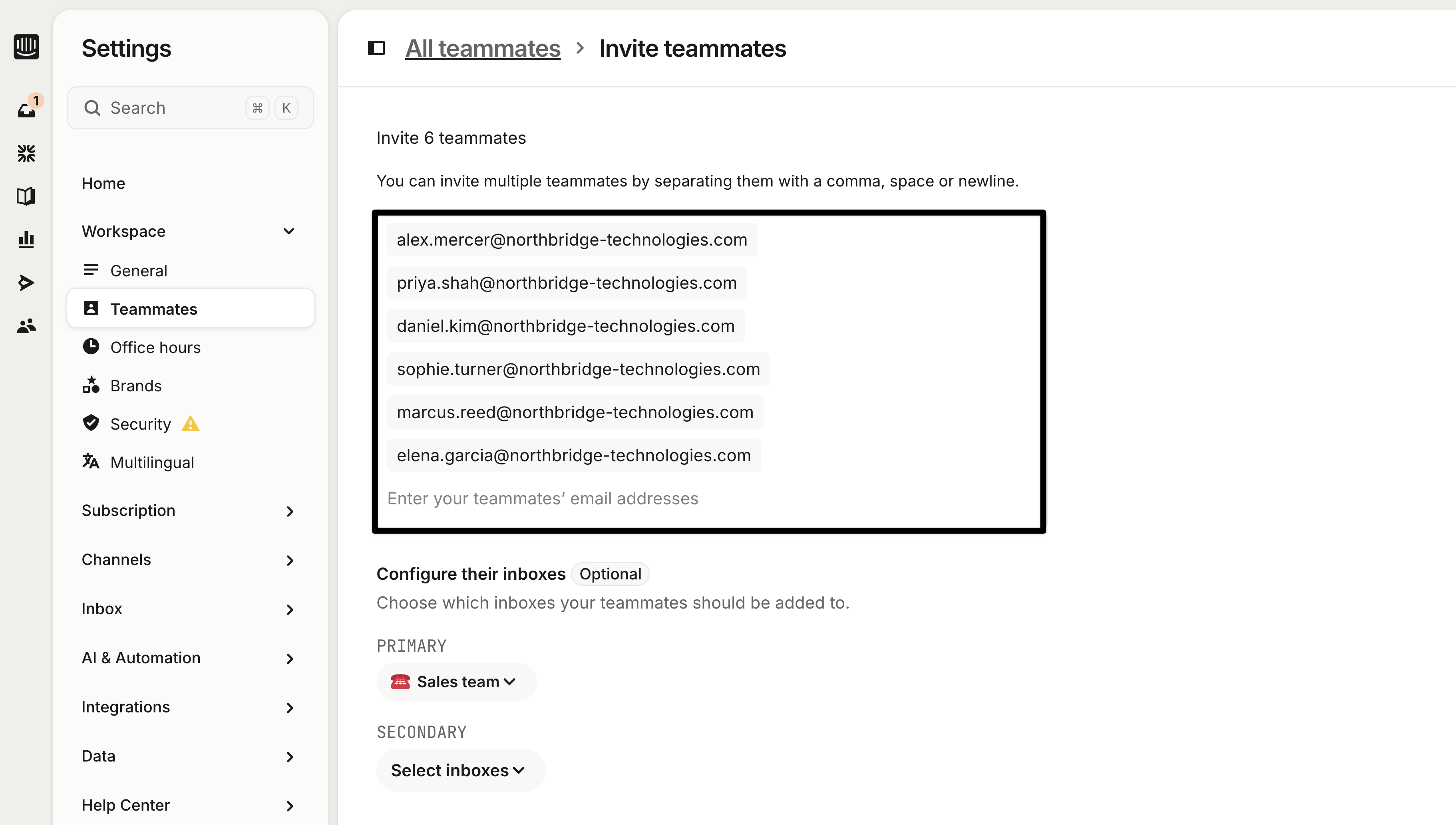
Invite your teammates to Intercom
Invite your team and set them up for success.
Your workspace is configured, but a helpdesk only works when your team is in it. Before you send those invitations, take ten minutes to prepare a short brief for your support team.
The difference between a smooth first day and a week of “where do I find...” questions comes down to five things.
This lesson is part of the Setting up your AI-first helpdesk course.
Prerequisites
Before you begin, make sure you have the following in place:
- Teammate management permissions: You need admin or permissions-level access to invite new teammates to your Intercom workspace.
Inviting your team
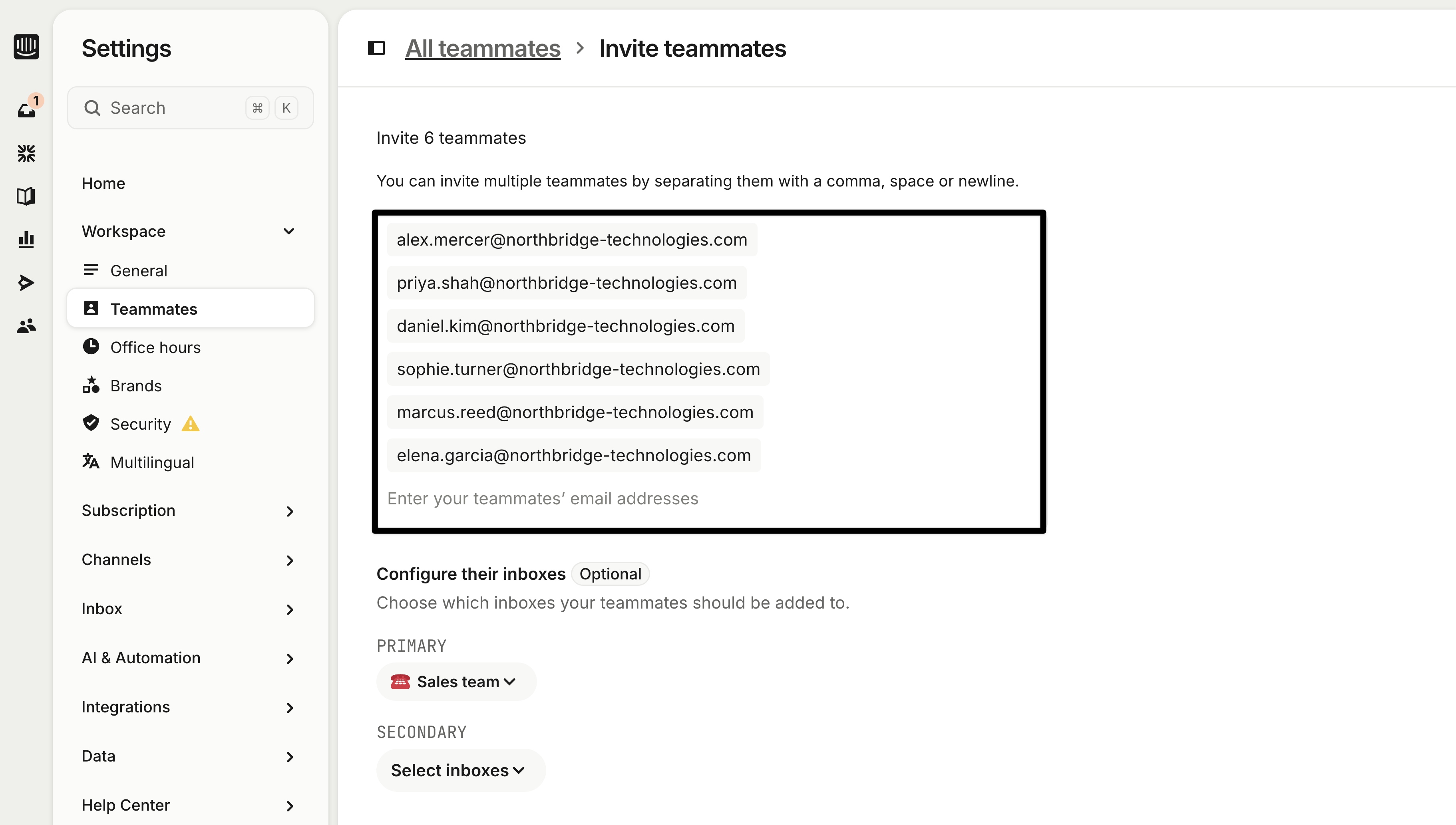
Go to Settings → Teammates → + New teammate to add or import a list of teammates.
When your support agents accept their invite and log in for the first time, share this checklist with them. You can send it as a message, pin it in a team channel, or walk through it in a quick kickoff call.
Five things to walk your team through
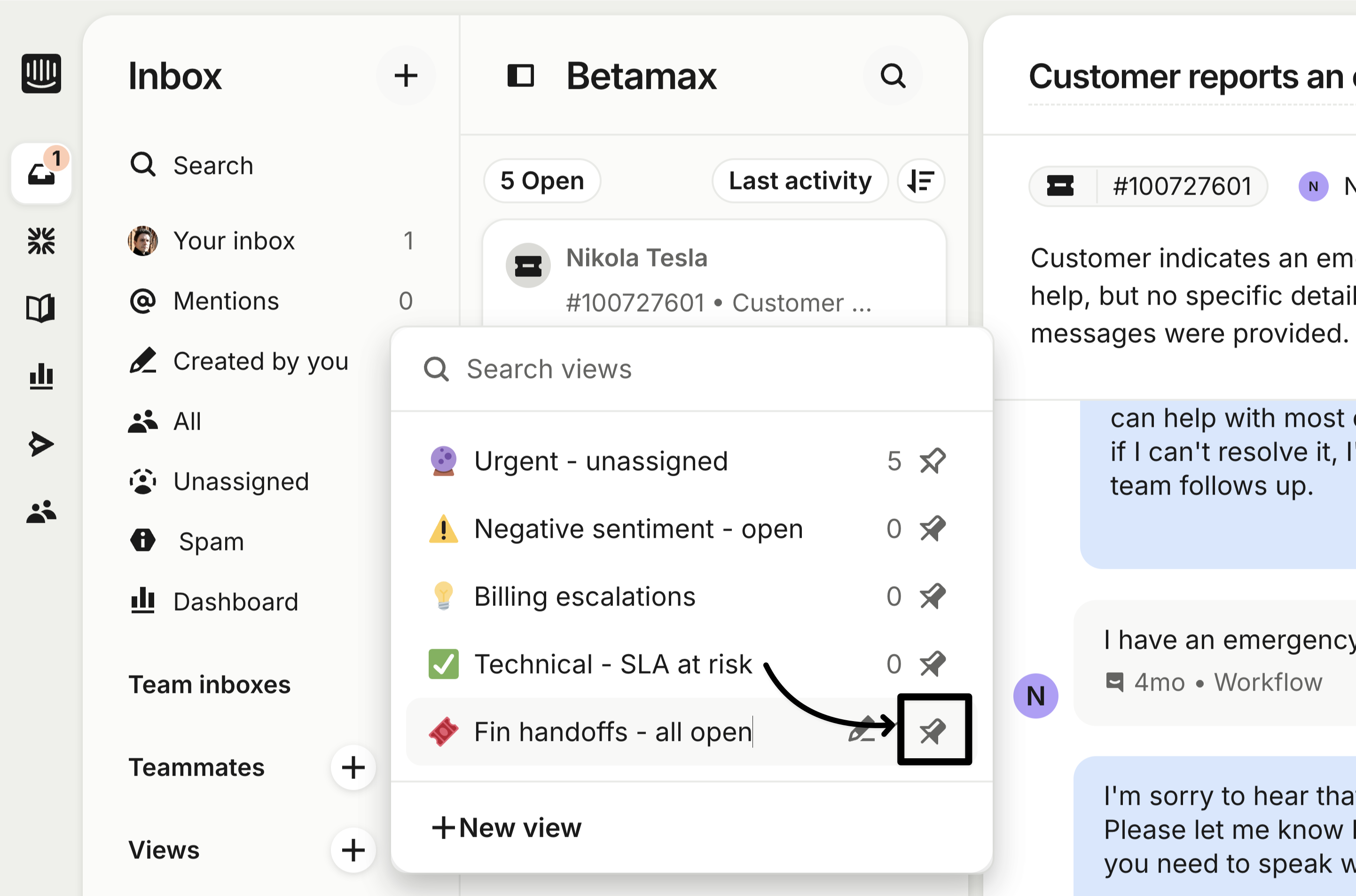
1. Which views to pin
Your team needs to know which inbox views matter for their role. Tell them to go to the inbox sidebar and pin the ones they’ll use daily. A good starting set for most teammates:
- My open conversations: everything currently assigned to them
- Unassigned: the shared queue for their team inbox
- Waiting on customer: conversations where the ball is in the customer’s court
If different teammates work different queues, let them know which views are relevant to them specifically.
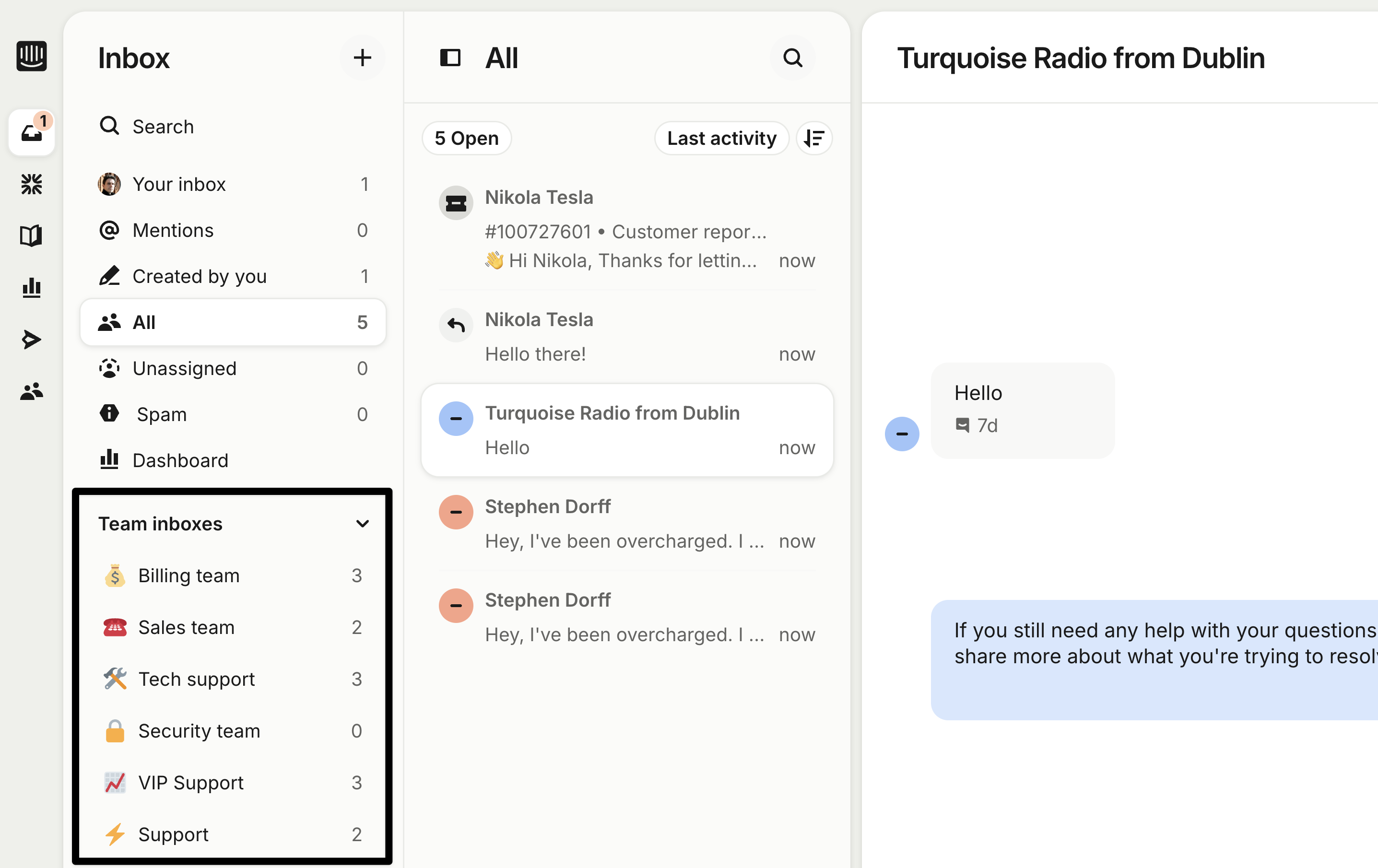
2. Which team inboxes they belong to
Each of your support agents should know which team inboxes they’re assigned to and how work gets routed to them.
Let them know what assignment rule is being used, so they know what to expect. If you’re using balanced assignment, let them know the system accounts for their current workload, so they don’t need to worry about cherry-picking.
3. How to use Copilot
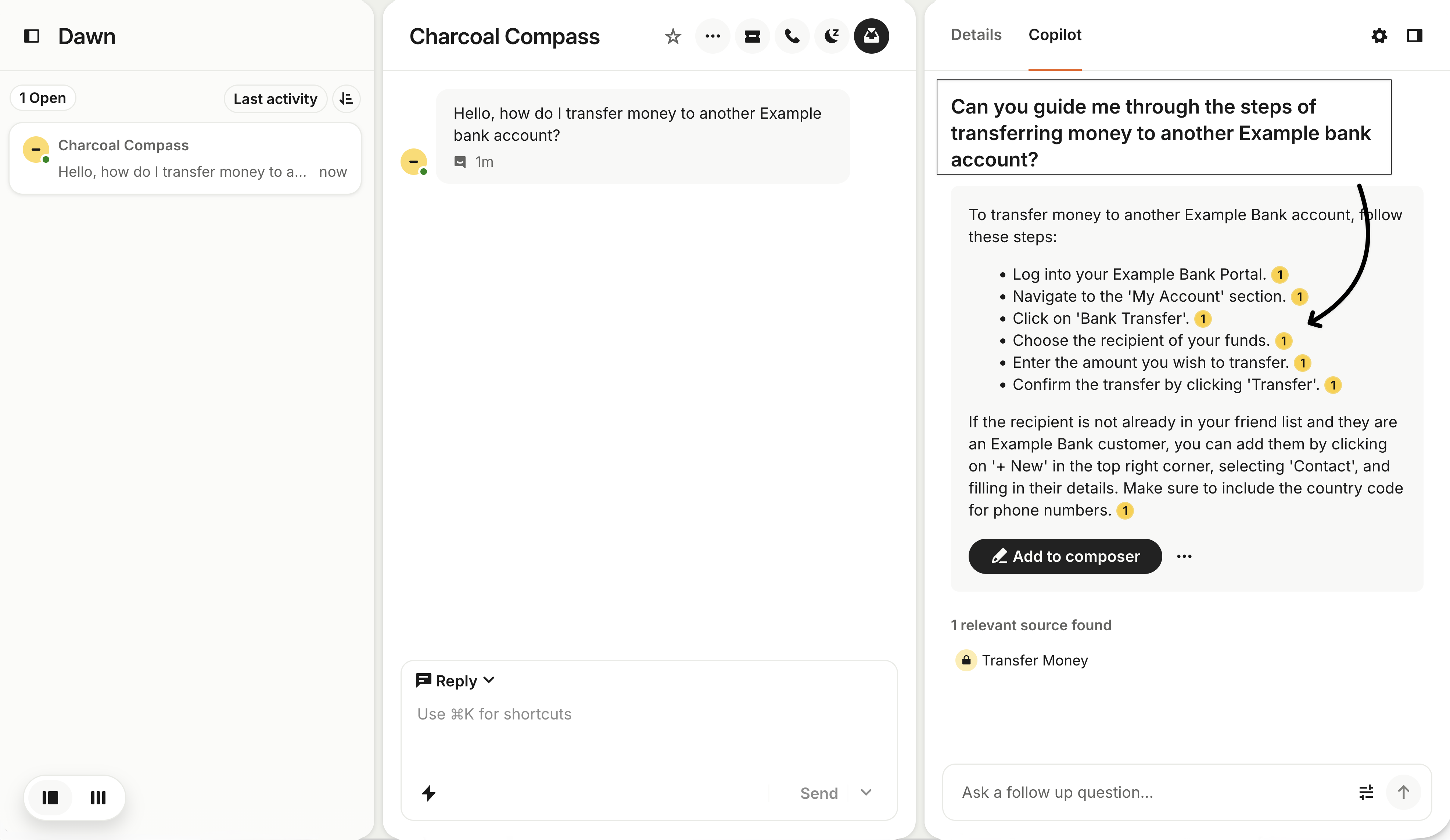
Copilot is ready from the moment your support agents log in. They just need to know where it lives. Two ways to access it:
- Keyboard shortcut: press Cmd+K (Mac) or Ctrl+K (Windows), then select “Ask Copilot”
- Sidebar tab: open the Copilot tab in the right-hand panel of any conversation
Copilot can draft replies, summarize conversations, look up answers from your knowledge base, and suggest next steps. Encourage your team to try it in their first few conversations rather than waiting until they’re “stuck.” The more they use it, the faster it becomes useful.
4. Macro library and naming conventions
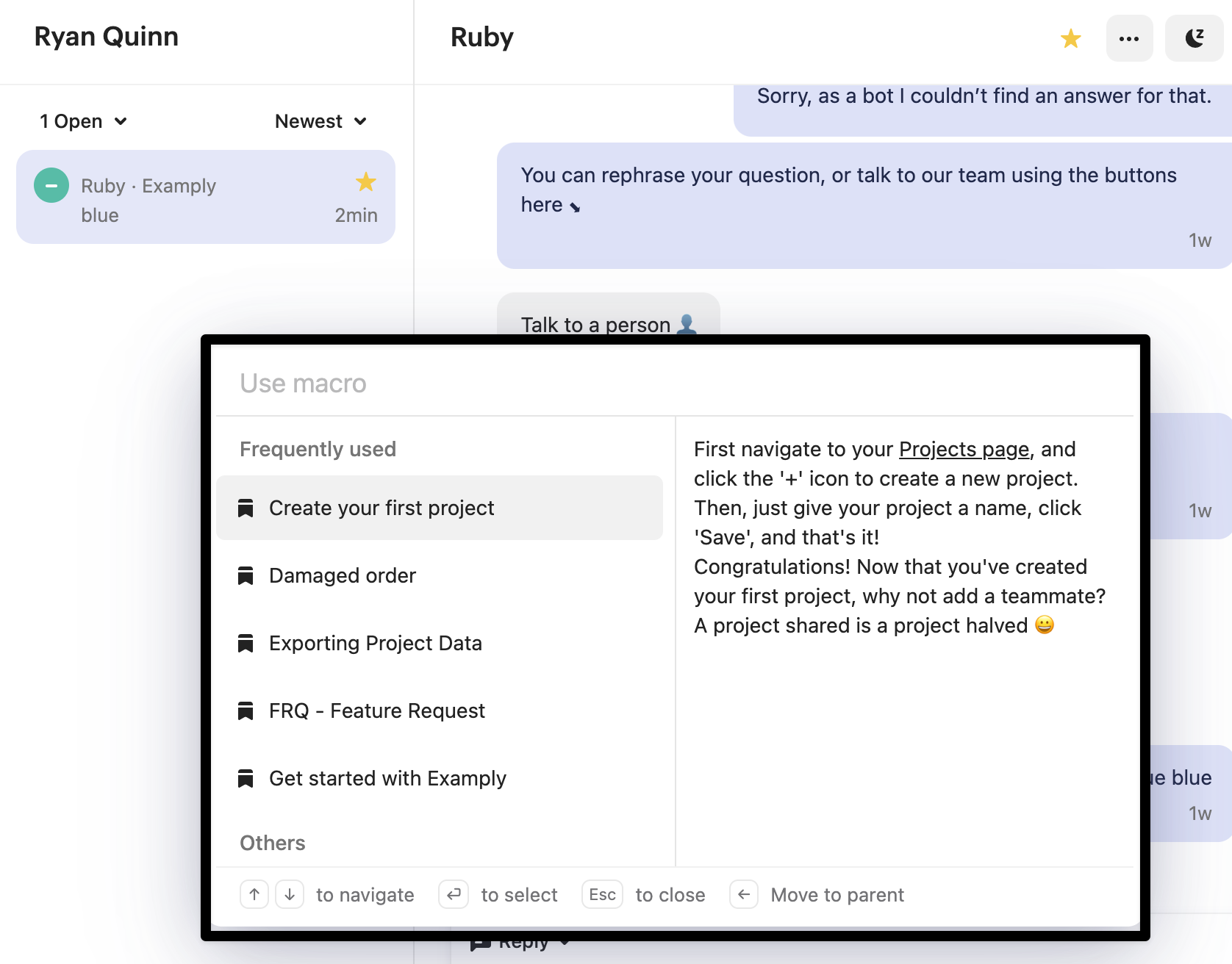
Your team needs to know how to find and use your macros. To trigger a macro, type \ (backslash) in the reply composer. This opens the macro search, and typing a few characters filters the list.
Share your naming convention so your team can find what they need quickly. For example, if you’re using the format [Category] Action (like [Billing] Refund confirmation or [Shipping] Delay notification), tell them the pattern so they can search by category.
Also let them know: macros aren’t locked. If they spot a gap or want to suggest a new one, they should flag it rather than creating ad hoc responses for common questions.
5. Notification settings
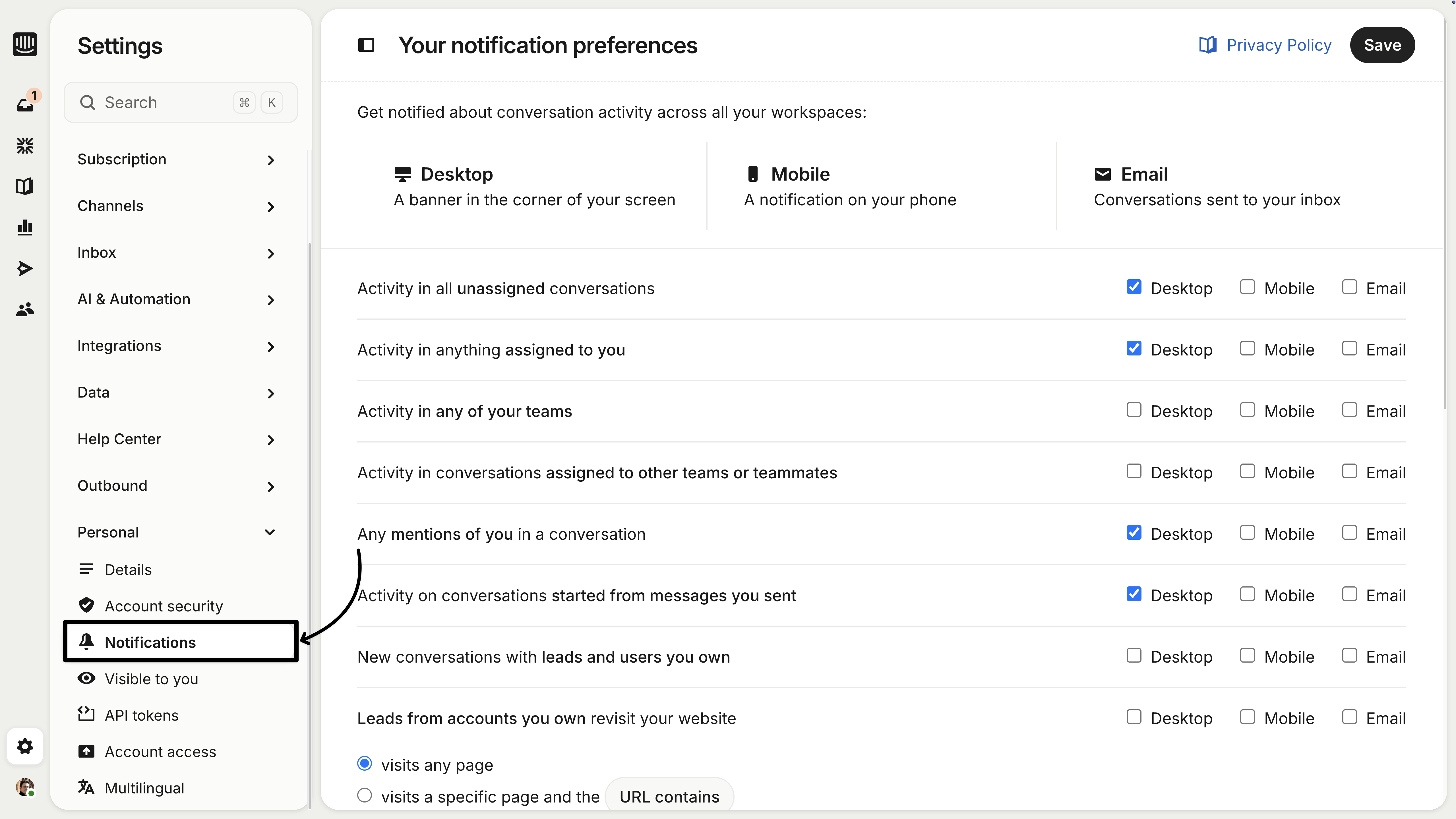
Intercom doesn’t push default notification preferences for new teammates. If your support agents don’t configure this themselves, they may miss assignments, mentions, or replies.
At minimum, have them enable:
- New assignments: so they know when a conversation lands in their queue
- Mentions: so they see when a colleague tags them
- Customer replies: so they can respond promptly to active conversations
They can find notification settings in Settings → Personal → Notifications. It takes thirty seconds and saves a lot of “I didn’t see that” later.
Acknowledge the shift
For teams that are new to working alongside AI, it’s worth acknowledging that this is a big change. When Fin handles the repetitive questions, the conversations that reach your support agents tend to be more complex, more nuanced, and more varied. That’s a good thing for job satisfaction and skill development, but it can also feel unfamiliar at first.
A few things that help:
- Name the change directly. Don’t let it be something people notice but nobody talks about. A short team conversation about “here’s what’s different and why” goes a long way.
- Point to the help center. Intercom’s help center has articles on working in the inbox, using Copilot effectively, and more. Share the relevant links rather than trying to write your own training docs from scratch.
- Give it a few weeks. Most support agents find their rhythm within two to three weeks. Check in regularly during that period.
If you want a structured learning path for your team, the course Fundamentals for support agents on Fin Academy walks them through the full experience of providing support in an AI-first environment.
