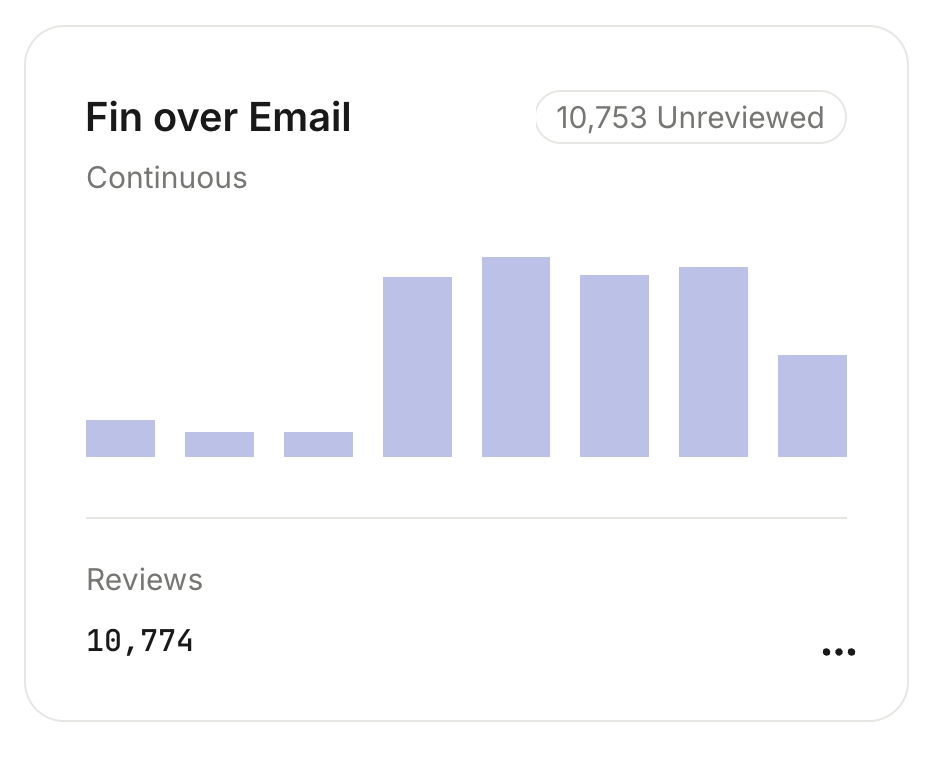
Optimize Fin over email
Learn how to monitor, optimize, and continuously improve Fin's performance over email.
Once Fin is live over email, optimization becomes an ongoing habit rather than a one-time task. Head to Fin AI Agent > Analyze to get real-time metrics like Automation rate, Customer Experience (CX) score, automated conversation analysis at scale, and AI-powered suggestions for improving Fin.
Prerequisites
Before optimizing Fin for email, make sure you’re ready to go.
- Fin deployed on chat: In most cases, it’s better to already have Fin AI Agent live on your chat channel before expanding it to email. If you haven’t set Fin up yet, take the Launch Fin course to get started.
- Email channel set up: To deploy Fin over email, you need to connect your email channel first.
- Fin trained and deployed over email: Fin should already be live and handling conversations over email, with guidance configured to match the channel. See the full Expand Fin to Email course to learn how to set this up.
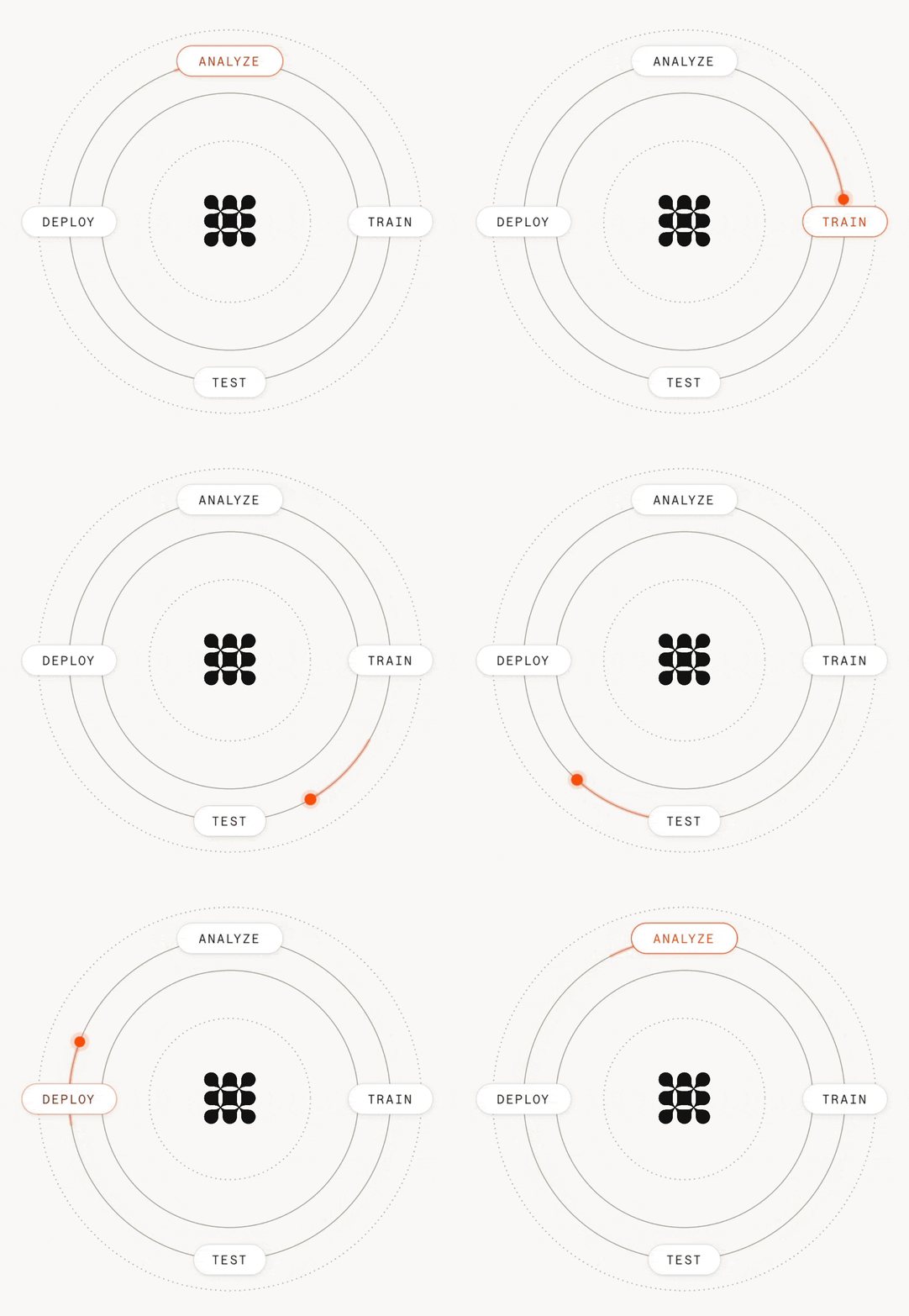
You’ll find these dashboards under Analyze:
- Performance
- Topics Explorer
- Recommendations
- Trends
- Issues
- Monitors
Tip: Learn how to use Insights for Fin.
As you review Fin’s performance and spot opportunities for improvement, you’ll continuously train, test, and redeploy Fin to increase the number of outcomes it delivers.
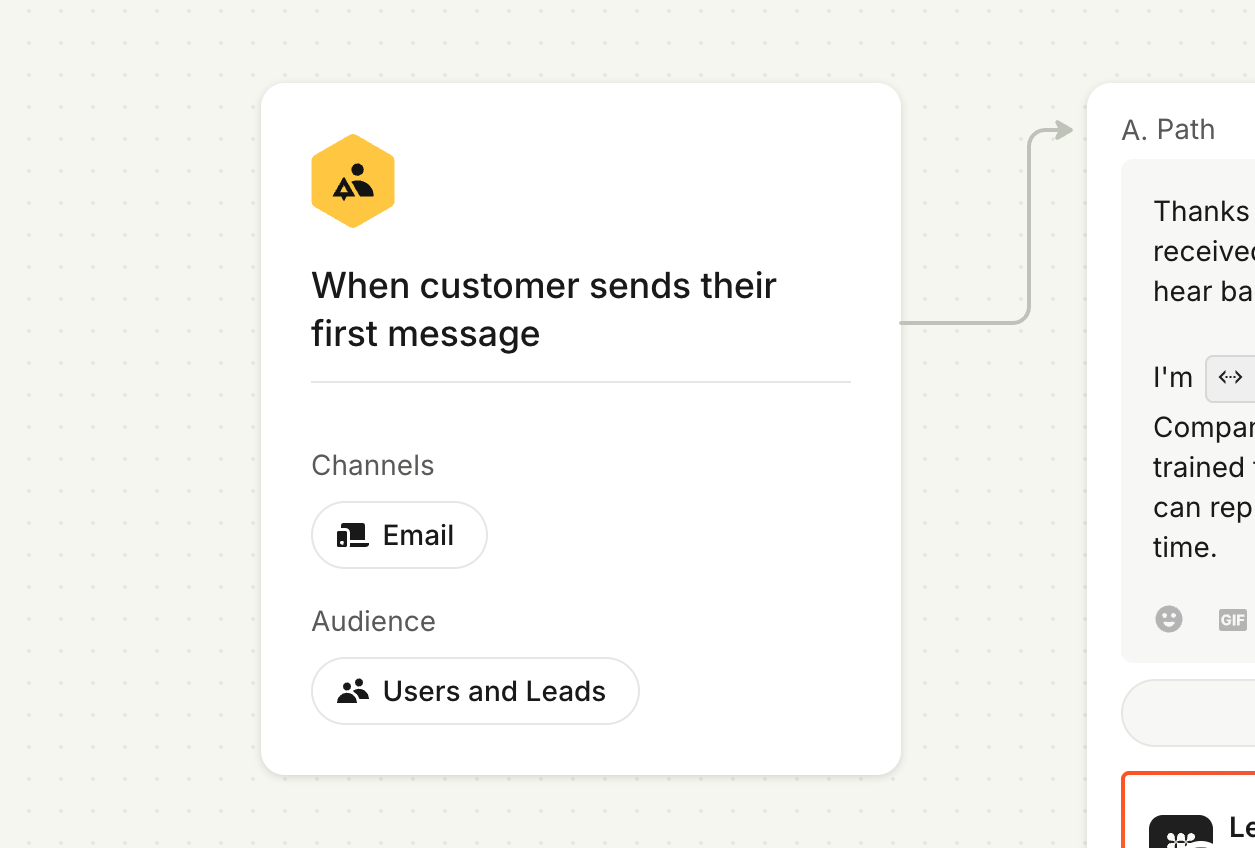
The recommended approach for email: on by default
If Fin is already performing well on chat, you have a well-maintained knowledge base, and Guidance is in place for email, then we highly recommend you turn Fin on for all of your email volume from day one, rather than starting with a narrow segment.
From there, optimization is about finding where Fin is underperforming and making improvements. Identify the issue types or segments that are driving poor resolution rates or CX Scores, and close content gaps, add Human in the loop rules, or add escalation carve-outs where necessary.
Goals and expectations
Email resolution rates will lag behind chat’s, even once your setup is dialed in. That’s not a sign something’s wrong, it’s the result of factors inherent to the channel, like longer, multi-question messages, and greater wait periods before closing out. So don’t compare Fin’s performance over email directly against its performance over chat.
Rather than aiming at a fixed end goal, treat optimization as continuous improvement of your own metrics over time. Set staggered, time-bound goals. For example, a specific lift in resolution rate or CX Score over the next four weeks, rather than a high ceiling you’re reaching for indefinitely. Hitting a goal just means it’s time to set the next one.
Close content gaps
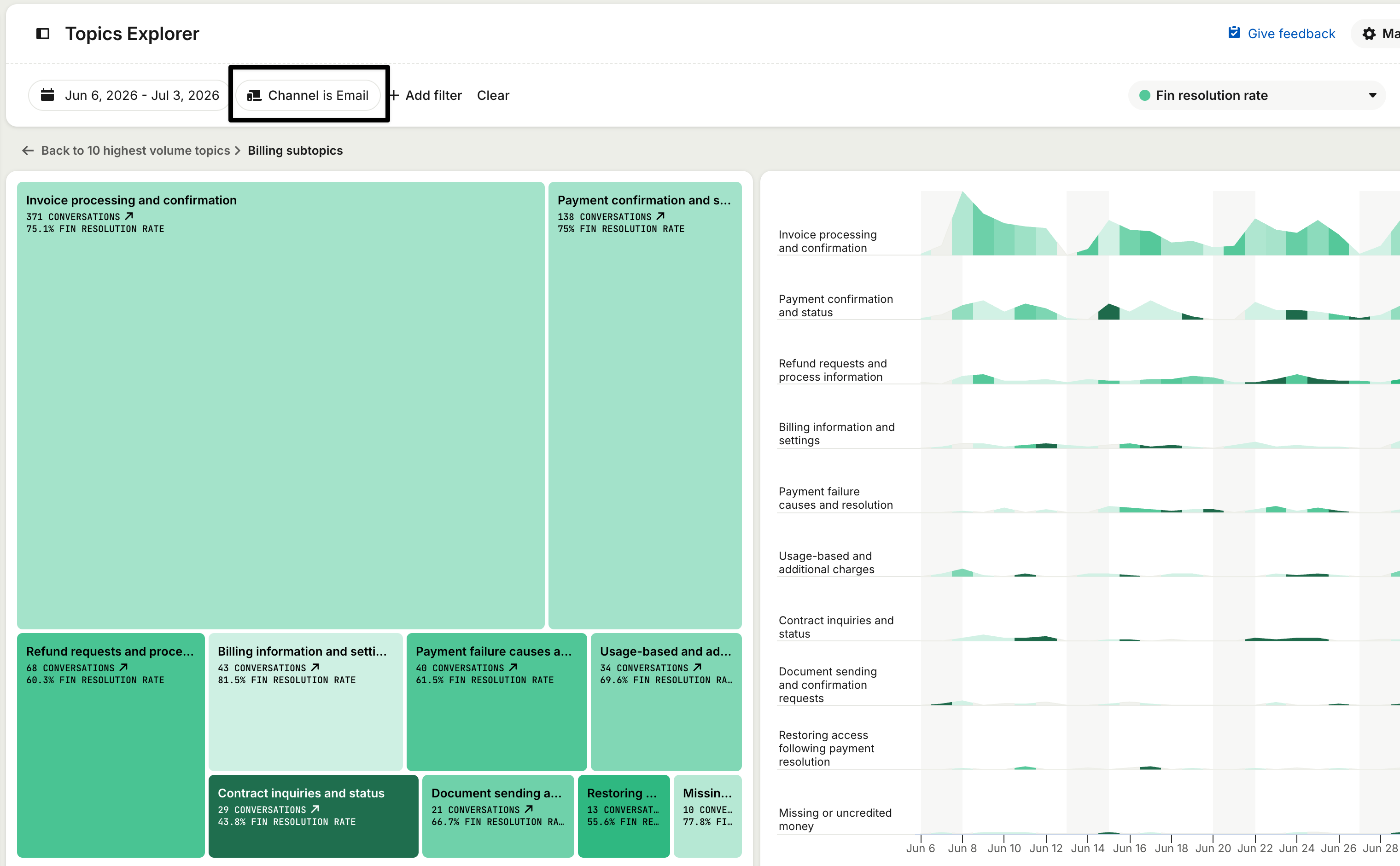
Topics Explorer surfaces the kinds of questions your customers actually send by email, which can be different from what shows up in chat. Make sure you’ve got content in place for Fin to answer questions on these topics and subtopics.
Recommendations also flags content gaps regularly. Fin’s expansion to email may trigger content gaps you haven’t seen before, so keep a close eye on this dashboard.
See which topics are driving a poor CX Score for email
Filter Topics Explorer by Email and CX Score and look for topics that are resulting in a poor customer experience.
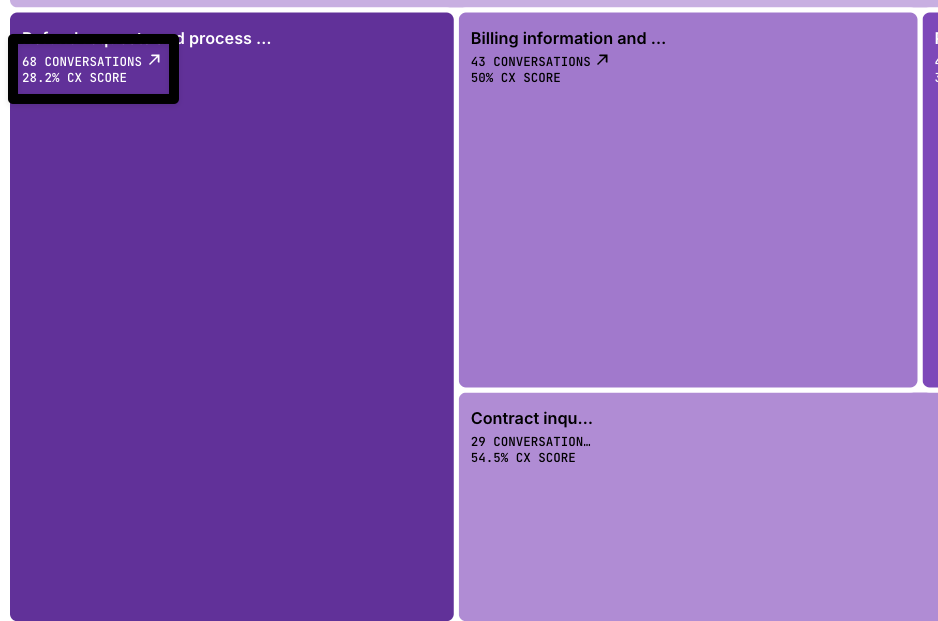
Drill in to those conversations to see what is driving poor CX Scores, especially when Fin is resolving the conversations. If the issue is with Fin’s behavior, not with its answers, then the root cause may be Guidance related.
Where Fin fails to resolve conversations and escalates, add Human in the loop rules that get teammate assistance without requiring escalation.
Refine Spam Guidance
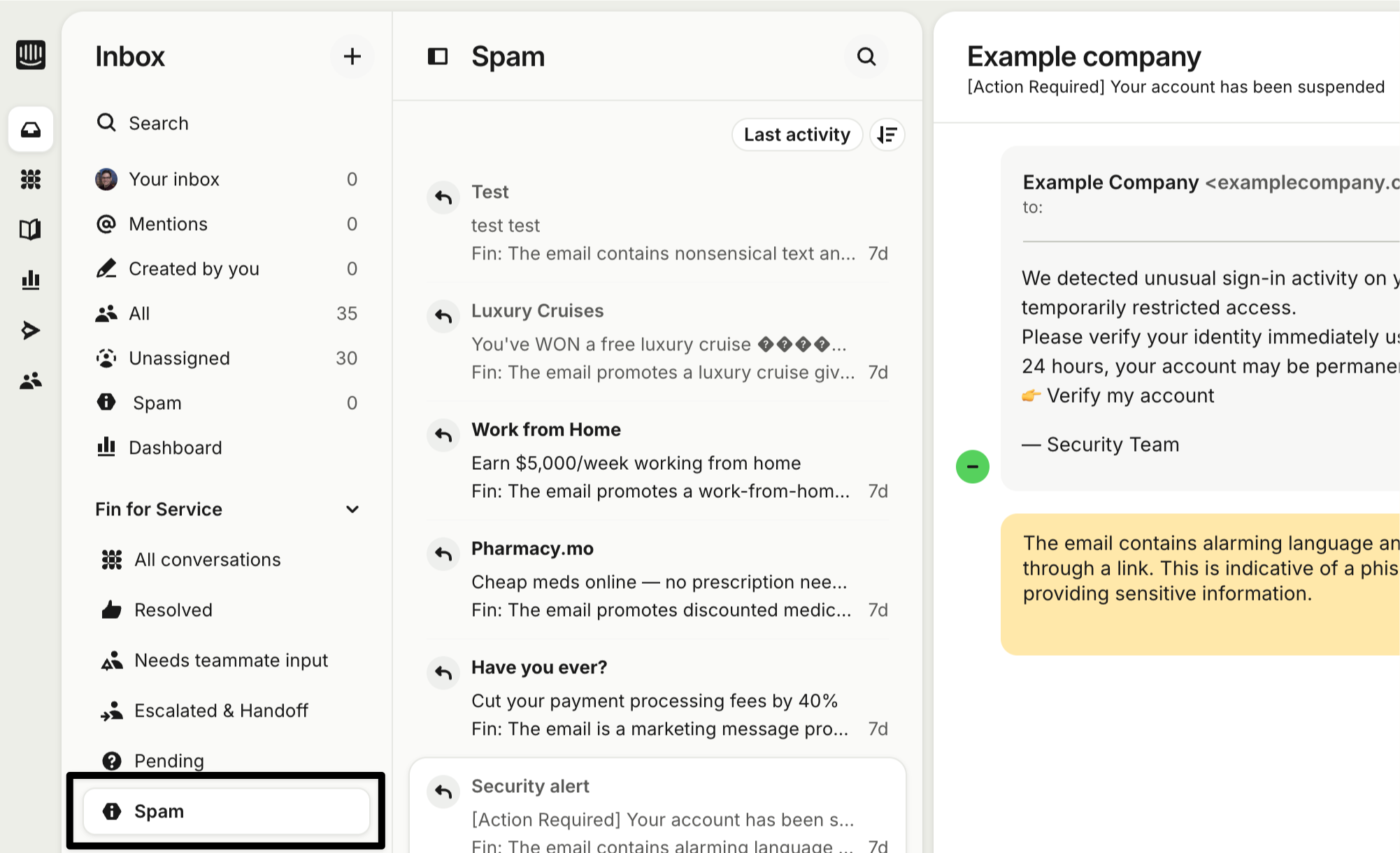
Check the Spam folder regularly for false positives or non-spam messages you do want a teammate to see. Mark false positives as genuine so Fin re-evaluates them, and refine your Spam guidance to further include or exclude certain messages. You can add Escalation rules for certain senders to make sure their messages go straight to the team.
Review Fin’s CSAT feedback
Metrics and dashboards tell you what is happening, but not always why. Fin’s CSAT survey collects both a rating and an optional written comment from customers, and those comments often surface specific, qualitative feedback that a resolution rate or CX Score can’t capture on its own.
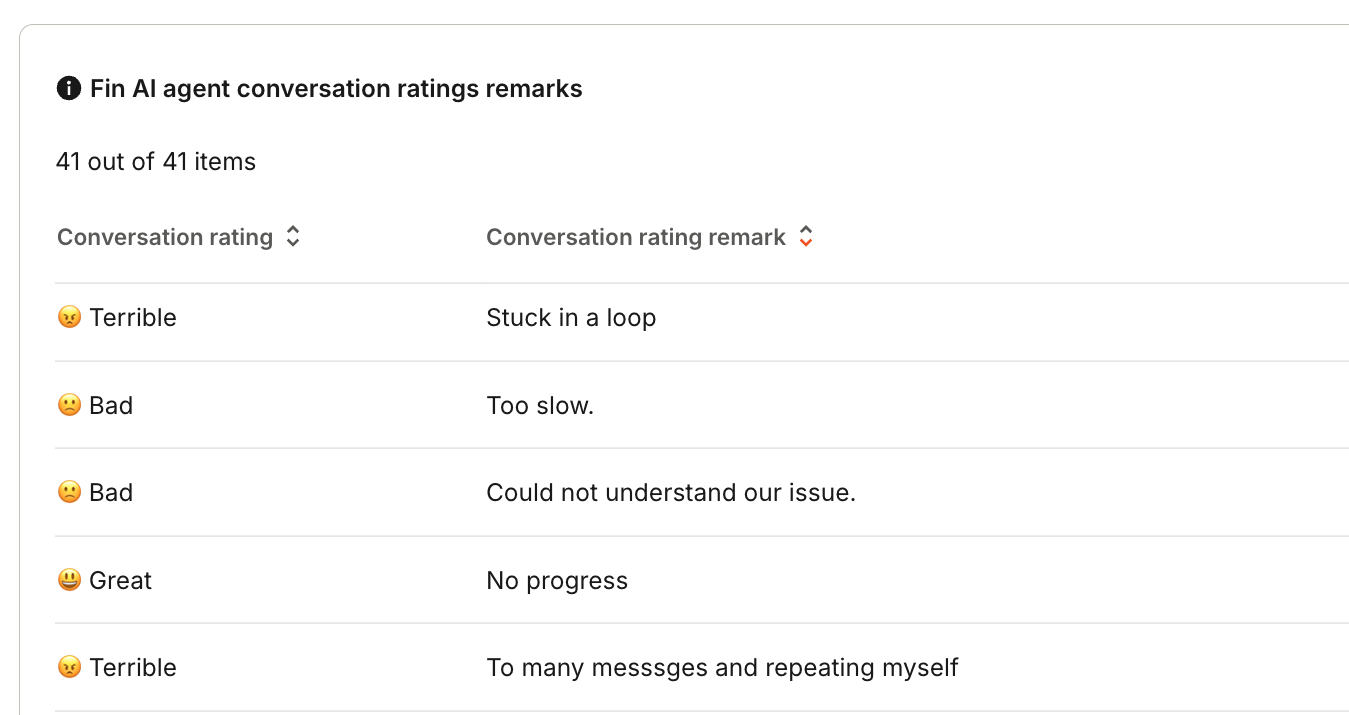
Go to Reports > Automation > Fin AI Agent to find your Fin AI Agent report. Filter by Email and scroll down to Fin AI agent conversation ratings remarks. Sort Conversation rating from lowest to highest to find the poorest rated experiences, and look for remarks. Reading through these regularly is a good way to identify blind spots in content, Guidance, workflow configuration, or settings for this channel.
Create a Monitor
Monitors let you continuously track a defined set of conversations and flag them for review, rather than manually sampling or waiting for a metric to dip before you investigate. For email, this is the most reliable way to stay on top of quality without reading every conversation yourself.
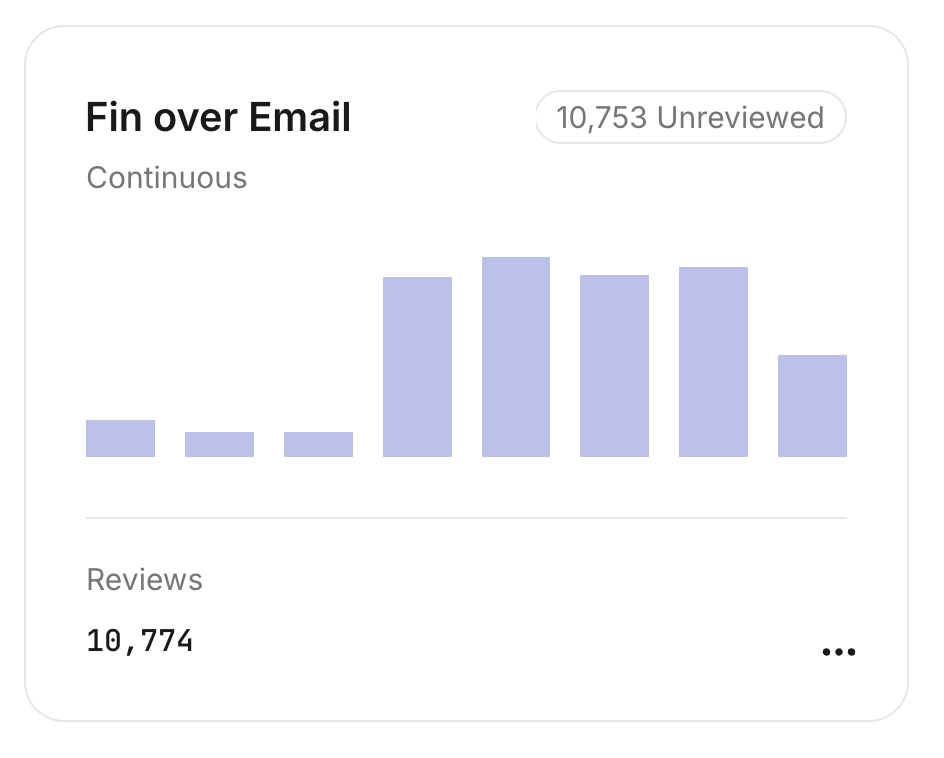
In Fin AI Agent > Analyze > Monitors, create a new Monitor (the Low Fin answer quality template is a good starting point) and filter it to email conversations. Attach a scorecard so every matching conversation is automatically scored against your criteria, and set your flag criteria to catch conversations that fall below the CX Score or quality threshold you’re comfortable with. Every conversation that crosses that line lands in your review queue automatically, so nothing below your bar slips past unnoticed while you’re focused elsewhere.
Review these conversations to ascertain the root cause for their failure to meet your standards. Refine Guidance, content, Human in the loop, or Escalation rules as necessary.
Preview before setting changes live
Any time you adjust guidance, escalation rules, or Human in the loop (HITL) thresholds, confirm the changes behave as expected before it reaches customers.
There are two main ways to do this:
- You can use the Preview panel to conduct limited tests of Fin’s responses, to ensure it delivers the right answers and behavior.
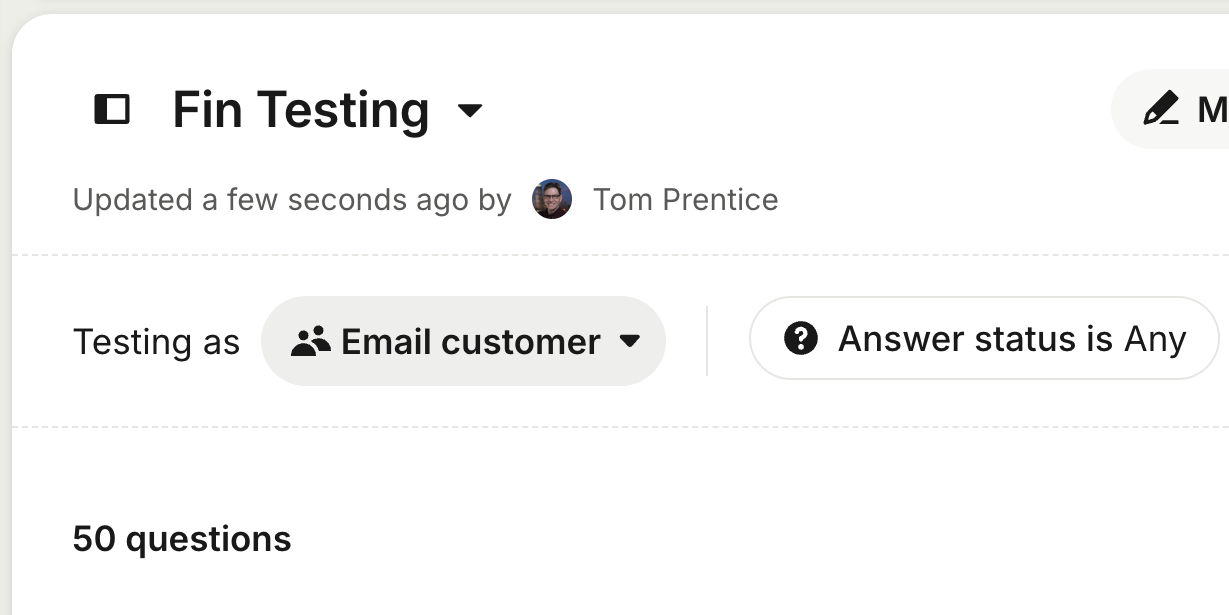
- Use Test to test Fin’s responses at scale. You can test as a customer on the email channel (using Fin audiences), scoring Fin’s responses against up to 50 test questions per test.
Resources
- How to analyze Fin and get insights from 3 AI-powered dashboards
- Manage Fin AI Agent’s escalation guidance and rules
- How Fin filters spam on email
- Analyze and report on Fin AI Agent CSAT
- Monitors explained
- How to create a Monitor
What’s next?
You now have a full toolkit for keeping Fin sharp on email, so what now?
Ready to go deeper?
This lesson is part of the full Expand Fin to Email course, covering training, deployment, and post-launch monitoring.
👉 Take the full course
